How to Make a Bottle Cap Mosaic, Step by Step
Whether your goal is a printable poster or a physical build, the process follows the same four steps: choose an image, set up your caps, generate and refine, then print or assemble.
Step 1 — Choose an image
Pick a source image that will survive being broken into tiles. Simple, high-contrast subjects with a clear focal point work best — a portrait, a logo, a bold illustration. Extremely detailed scenes lose definition at mosaic scale. If the subject doesn't read clearly as a thumbnail, it won't read as a mosaic.
Step 2 — Set up your caps
You need a cap library: the set of cap images the software can build with.
- Quick start: the Online Version includes a demo cap library, so you can experiment immediately.
- Your own caps: photograph your collection — square, centered photos up to 800 × 800 px work best — and load them as a custom library. Without the demo library, load at least 10 photos. Your photos stay on your device; only per-photo color data is used for matching.
- Physical projects: in the Standalone Version, also record how many of each design you own. That Cap Inventory is what keeps the plan buildable.
Step 3 — Generate and refine
Set the cap size, layout pattern, and grid dimensions, then create the mosaic. Now refine: adjust overall repetition so no cap dominates, and — for digital artwork — use color adjustment to bring the render closer to your photo. Expect a few iterations; small changes to grid size and repetition can transform the result.
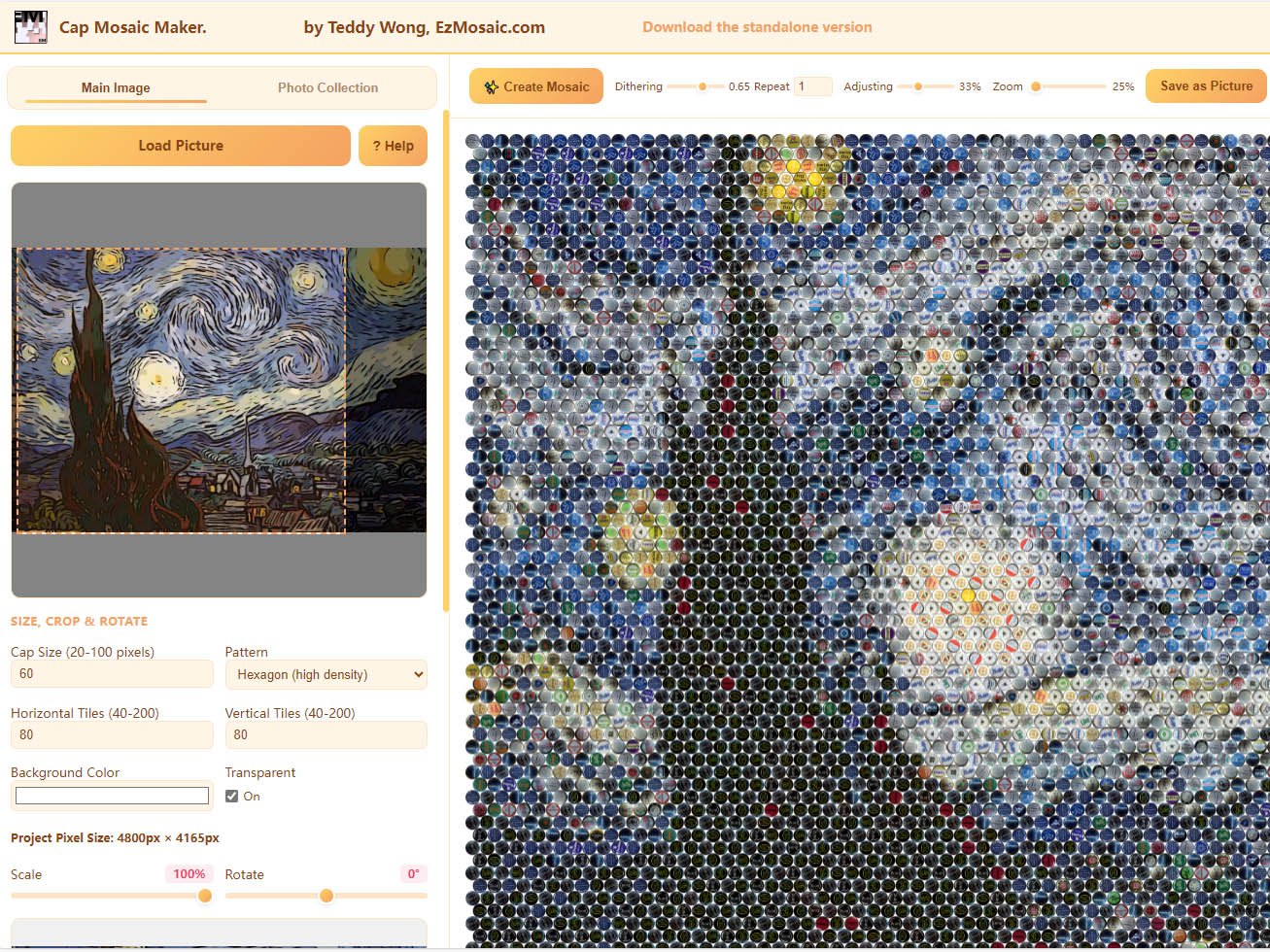
Step 4 — Print or assemble
Digital: save the mosaic as a picture and print it yourself, or use EzMosaic's Poster Printing service.
Physical: in the Standalone Version, generate the Workplan and follow it position by position with your real caps. Missing designs? Replica Cap Printing can fill the gaps.
Common beginner mistakes
- Choosing an overly detailed photo — simplify or crop tighter.
- Too few cap designs — variety in your library improves matching.
- Planning a physical build without counting the collection first — set up Cap Inventory early.